
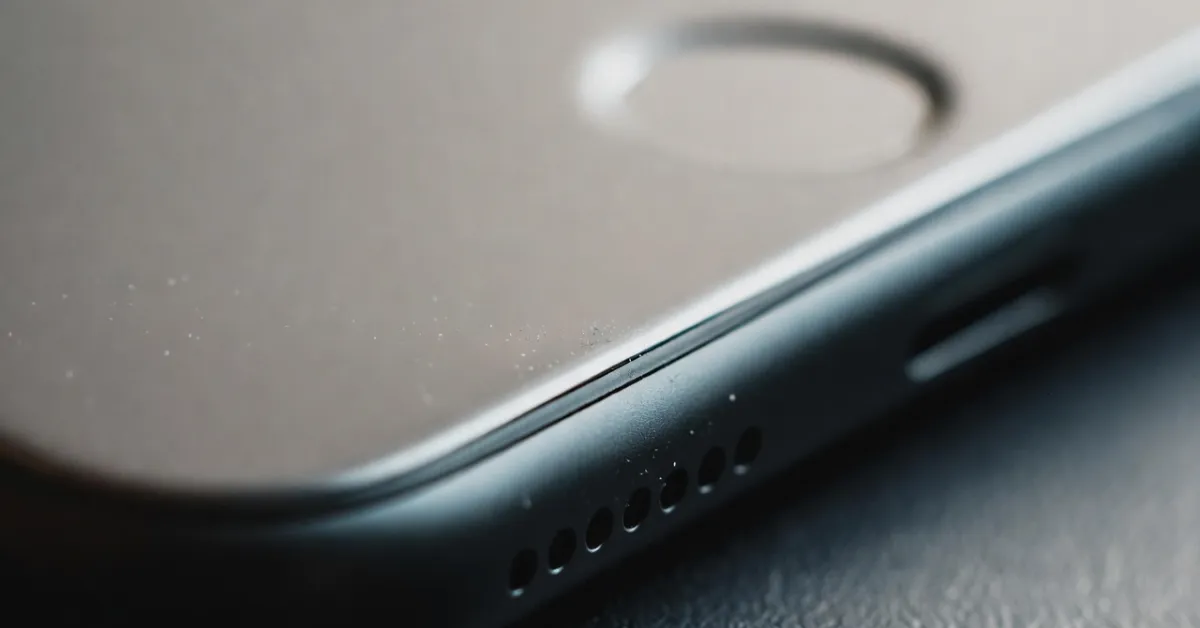
Your iPhone speaker sounds like someone’s talking through a pillow. Music is barely audible. You’re constantly maxing out the volume just to hear notifications. I’ve been there, and so have millions of iPhone users across the US.
The good news? Most muffled iPhone speaker problems aren’t hardware failures. They’re dust, lint, and grime slowly choking your speaker grille over months of being in pockets, purses, and backpacks. And you don’t need to visit an Apple Store or crack open your phone to fix it.
This guide covers safe, proven methods to clean your iPhone speaker and restore clear sound—without voiding anything or causing damage.
Why iPhone Speakers Get Muffled Over Time
iPhones live in our pockets. That’s the real culprit.
Every time you slide your phone into jeans or a bag, microscopic fabric fibers break loose. Pocket lint is basically textile dust, and it loves finding its way into the tiny perforations of your speaker grille. After a few months, you’ve got a compressed layer of debris acting like a sound barrier.
Dust buildup happens everywhere, but it’s worse if you:
- Live in dry climates (Arizona, Nevada, parts of Texas)
- Work in construction, woodworking, or dusty environments
- Keep your phone in bags with makeup, snacks, or other particulates
Moisture exposure makes things worse. A little humidity or sweat causes dust to clump and stick inside the grille. It doesn’t need to be water damage—just daily moisture from your hands or a humid summer day in Florida.
Environmental factors matter too. Beach trips introduce sand. Gyms mean sweat and air particles. Even cooking near your phone can deposit grease micro-particles that trap dust.
In real-world use, most iPhones develop noticeable speaker muffling within 6-12 months if never cleaned. It’s gradual, so many users don’t realize how bad it’s gotten until they compare it to a new device.
First: What NOT to Do (Important Safety Section)
Before we fix anything, let’s talk about what ruins iPhone speakers permanently.
Don’t use water or liquids. Even though newer iPhones have water resistance ratings, dunking your speaker in water or spraying it with cleaner pushes moisture deeper into the device. The speaker membrane is delicate. Water can warp it or seep into internal components. I’ve seen too many people turn a simple dust problem into a $200 repair bill this way.
Don’t use sharp objects. No toothpicks, needles, pins, or knives. The speaker grille mesh is incredibly thin—one wrong move and you’ll puncture it. That’s not a cleaning issue anymore; that’s hardware damage. Apple won’t cover it under warranty.
Don’t open the phone. This should be obvious, but I’ll say it anyway: DIY teardowns void your warranty and risk damaging ribbon cables, screws, and waterproofing seals. Unless you’re a trained technician, keep those pentalobe screws alone.
Don’t use high-pressure compressed air. This is controversial because some people swear by it, but here’s the reality: the canned air you buy at Best Buy delivers way too much force for an iPhone speaker. It can blow dust further into the device or damage the membrane. Apple explicitly warns against it in their support documentation.
Safe Ways to Remove Dust from an iPhone Speaker
Now for the methods that actually work without causing damage.
Method 1: Soft Dry Brush (My Go-To)
This is what I recommend first. Grab a clean, soft-bristled brush—an unused toothbrush works, but a dedicated electronics brush or even a clean makeup brush is better.
Steps:
- Power off your iPhone completely
- Hold the phone speaker-side down
- Gently brush across the speaker grille in one direction (not circular motions)
- Let gravity do the work—dust falls out as you brush
- Repeat 5-6 times
From experience, this method clears about 70% of surface dust. It won’t get compacted lint, but it’s a great first step and totally risk-free.
Method 2: Gentle Tapping Technique
This sounds too simple to work, but it’s surprisingly effective for loosening trapped particles.
Steps:
- Power off your phone
- Hold it speaker-side down over a white paper towel (so you can see what comes out)
- Tap the back of the phone gently with your palm—not hard, just firm taps
- You’ll see dust specks fall onto the paper
- Repeat while gradually tilting the phone at different angles
Many iPhone users notice immediate improvement after this. The vibration dislodges particles that brushing alone can’t reach.
Method 3: Gravity-Based Dust Removal
Let physics help you out.
Place your iPhone speaker-side down on a clean, flat surface overnight. The weight of accumulated dust naturally settles toward the opening. In the morning, do the tapping technique again. This combo approach works well for stubborn buildup.
Method 4: Safe Adhesive Gel (No Brand Names)
There are putty-like cleaning gels made for electronics. They’re reusable, sticky enough to grab particles, but not so adhesive they leave residue.
How to use it:
- Roll a small piece into a ball
- Gently press it against (not into) the speaker grille
- Pull it away slowly
- Repeat with a fresh section of the gel
I’ve used this on my own iPhone 15 Pro, and it grabbed lint my brush missed. Just don’t push hard or try to jam it into the holes—you’re dabbing, not stuffing.
iPhone Audio Settings That Can Make Sound Seem Low
Sometimes your muffled iPhone speaker isn’t a dust problem at all. It’s a settings issue that’s easy to miss.
Check speaker balance: Go to Settings > Accessibility > Audio/Visual. Make sure the stereo balance slider is centered. If it’s shifted left or right, one speaker will sound quieter than the other, creating a muffled effect.
Disable sound limits: Head to Settings > Sounds & Haptics > Headphone Safety. If “Reduce Loud Sounds” is enabled, it might be affecting overall volume output in unexpected ways. Many users don’t realize this setting exists.
Software glitches happen. In 2026, iOS updates occasionally introduce audio bugs. A simple restart fixes most of them. If you recently updated to the latest iOS version and suddenly your speaker sounds worse, check Apple’s support forums or wait for a patch.
For developers dealing with app-specific audio issues, understanding iOS audio frameworks matters. Speaking of which, if you’re working on app development, check out practical resources like the US App Store Optimization Tips for Indie Developers (2026 Guide) for insights on how users experience your app’s sound design.
Clean audio output explanation: Go to Settings > Sounds & Haptics and toggle everything off, then back on. Sometimes iOS gets confused about audio routing, especially if you’ve been switching between Bluetooth devices and built-in speakers frequently.
When a Muffled iPhone Speaker Is NOT a Dust Problem
You’ve cleaned everything. Settings are correct. Sound still sucks. Time to consider hardware issues.
Water damage: Even water-resistant iPhones can fail if exposed to saltwater, chlorinated pools, or prolonged submersion. If your phone took a swim and dried out, but the speaker never recovered, the internal components might be corroded.
Physical damage: Dropped your iPhone recently? A hard impact can knock the speaker loose or damage the internal connection. You won’t see it from outside, but it’s there.
Aging components: Speakers wear out. If you’ve had your iPhone for 3+ years and use the speaker heavily (speakerphone calls, loud music), the membrane fatigues. It’s not dust—it’s mechanical failure.
Signs you need professional help:
- Crackling or distortion at any volume
- Complete silence from one speaker but not the other
- Rattling sounds when you shake the phone
- No improvement after thorough cleaning
Apple Stores and authorized service providers can run diagnostics. If you have AppleCare+, speaker repair might be covered.
How Often Should You Clean Your iPhone Speaker
Prevention beats repair every time.
Monthly light cleaning: Quick brush and tap routine takes 30 seconds. Do it while you’re cleaning your screen.
Deep clean every 3 months: Use the adhesive gel method if you’re in dusty environments or notice any volume drop.
Pocket habits matter: If possible, keep your phone in a dedicated pocket without keys, coins, or lint-generating fabrics. Cases with covered speaker areas help, though they can slightly muffle sound themselves.
Environment awareness: After beach trips, hiking in dusty areas, or working in garages, give your speaker a quick clean. Don’t let particles sit and compress.
In everyday usage, most people can get away with cleaning their iPhone speaker every 2-3 months and maintaining crystal-clear sound for years.
Frequently Asked Questions (FAQ)
Can dust permanently damage iPhone speakers?
Yes, but it’s rare. Compressed dust can scratch the speaker membrane over time or push so deep that professional cleaning becomes necessary. Regular maintenance prevents this.
Is compressed air safe?
Not the kind from stores. The pressure is too high. Apple doesn’t recommend it. Some techs use ultra-low-pressure air tools, but that’s specialized equipment—not what you have at home.
Why is sound fine on headphones but not the speaker?
Because headphones bypass the iPhone’s built-in speaker entirely. If your wired or Bluetooth audio sounds perfect, it confirms the speaker hardware or grille is the problem, not iOS audio processing.
Does Apple recommend cleaning speakers?
Apple’s official stance is vague—they suggest a “soft, lint-free cloth” for cleaning but don’t provide specific speaker cleaning instructions. Their support docs warn against liquids, sharp objects, and compressed air. The methods in this guide align with those safety guidelines.
Conclusion
A muffled iPhone speaker is annoying, but it’s usually fixable without spending a dime or visiting a repair shop. Most cases come down to dust and lint buildup that responds well to gentle brushing, tapping, and adhesive gel cleaning.
The key is patience and prevention. Clean your speaker regularly, avoid harsh methods, and you’ll keep your iPhone sounding crisp for years. If cleaning doesn’t help, that’s your sign to get professional diagnostics—but try these safe methods first.
Your phone doesn’t need surgery. It just needs a little care.